Files
Read, write, create, move, and search files on your device through conversation.
Work with files on your device
Chalie can read files, write and update files, create and delete files and folders, move or rename them, search for files by name or content, and adjust permissions — all through natural conversation.
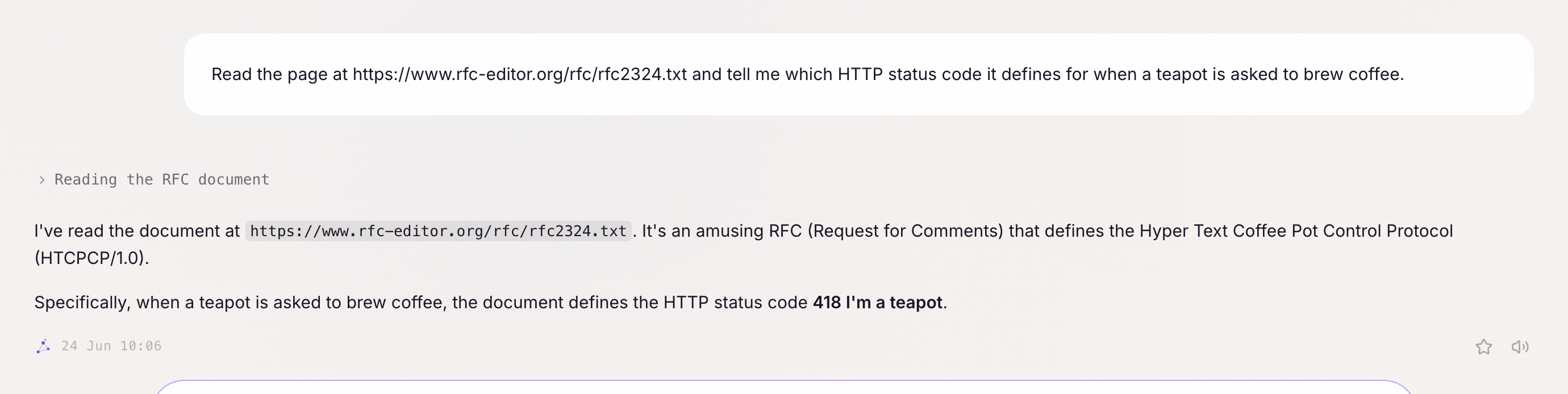
Getting started:
- “Read the file at ~/Documents/notes.txt.”
- “Find all Python files in my project that mention ‘database’.”
- “Write a new file at ~/scripts/backup.sh with the contents I’m about to give you.”
Reading files
Ask Chalie to read any local file:
- “Read my SSH config at ~/.ssh/config.”
- “Open the PDF at ~/Downloads/contract.pdf and summarise it.”
- “Summarise the slides in ~/Documents/deck.pptx.”
Supported formats include plain text, Markdown, PDFs, Word documents, PowerPoint files, HTML, code files, and more.
Writing files
Ask Chalie to create or update a file at any path you specify:
- “Create a file at ~/scripts/daily_backup.sh with these contents.”
- “Write a JSON config file to ~/app/config.json with these settings.”
- “Overwrite ~/Documents/todo.txt with the new list.”
When writing to an existing file, Chalie reads it first before making changes — this prevents accidental overwrites. If that read didn’t see the whole file because it’s large, Chalie won’t overwrite it blind: it reads the rest first, or makes a smaller, targeted edit instead. If you ask for something to be created and don’t give a path, it lands in your documents folder by default.
Making a targeted edit
For a small change inside a larger file, ask Chalie to swap one exact piece of text for another rather than rewrite the whole thing:
- “In ~/Documents/todo.txt, change ‘buy coffee’ to ‘buy coffee and oat milk’.”
- “In the config file, update the port number from 8080 to 9090.”
- “Fix the typo in the third paragraph of my notes.”
This only touches the exact text that matches — everything else in the file is left exactly as it was. If the text Chalie is looking for shows up more than once, or isn’t there at all, it stops and asks you to be more specific rather than guessing.
Creating and deleting files and folders
Ask Chalie to make a new, empty file or folder, or to remove one:
- “Create a new empty file at ~/projects/report/notes.txt.”
- “Make a folder called ~/projects/reports/archive.”
- “Delete ~/Downloads/old-installer.dmg.”
- “Remove the entire ~/projects/scratch folder.”
Parent folders are created automatically, so you don’t need to create each level yourself. Deleting a folder removes everything inside it, so double-check the path before asking one to go.
Finding files
Search for files by name pattern, by exact content, or by a fuzzy match against what’s inside them:
By name:
- “Find all .yaml files in my home directory.”
- “Look for any file named ‘config.py’ in my project.”
- “List all markdown files under ~/notes/.”
By exact content:
- “Find files that contain the word ‘password’ in ~/scripts/.”
- “Search for any Python file that imports pandas.”
- “Find the file that mentions the API endpoint ‘/v2/users’.”
By what a file is about:
- “Find the document that mentions the quarterly numbers.”
- “Which of my notes talks about the kitchen renovation?”
The first two are live and exact. The third checks a pre-built index that can even see inside PDFs, Word documents, and slides, ranking results by relevance — fast and fuzzy, at the cost of occasionally lagging a just-changed file by a moment. Results are paginated — ask “next page” if there are more results to see.
Changing permissions
Adjust file and folder permissions in plain language or with a specific Unix octal code:
- “Make the backup script executable.”
- “Lock ~/private/ down to owner-only access.”
- “chmod 644 the file at ~/Documents/report.pdf.”
New files and folders inherit your system’s default permissions — typically 0644 for files and 0755 for folders. Ask for a specific code if you need something different.
Moving and renaming files
Ask Chalie to move a file or folder to a new location, or give it a new name:
- “Move ~/Downloads/report.pdf to ~/Documents/reports/report.pdf.”
- “Rename ~/notes/draft.txt to ~/notes/final.txt.”
- “Move the whole ~/projects/old-site folder into ~/archive/.”
A move only succeeds if the destination doesn’t already exist, so nothing gets silently overwritten — rename or remove whatever’s there first if you want to replace it.
How it works
File reading and writing works with paths on the machine running Chalie. There are no size or path restrictions beyond what the operating system allows, though a single read is capped at 20,000 characters — past that, Chalie reads the file back in line ranges instead of the whole thing at once. File search results are paginated at 5 per page and cached briefly for repeated queries. Sensitive system paths (such as /proc and /etc) are blocked from reading for safety.