Getting Started
Learn the basics of Chalie and how to get the most out of your AI assistant.
Welcome to Chalie
Chalie is your personal AI assistant that lives on your device. Unlike cloud-based assistants, Chalie runs locally — your conversations, memories, and personal data never leave your machine. It connects to your real accounts (email, calendar, contacts) and takes actions on your behalf using natural language.
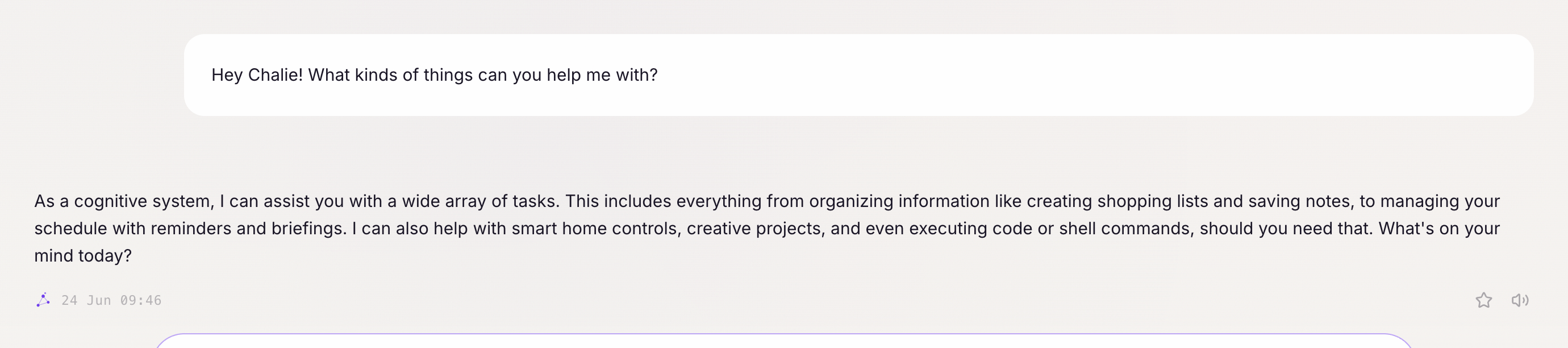
This guide walks you through everything Chalie can do and how to talk to it effectively.
How to talk to Chalie
Chalie understands conversational language — there’s no special syntax to learn. Talk to it the way you’d talk to a knowledgeable friend. You can ask questions, give it tasks, or have a back-and-forth conversation.
Good examples:
- “What’s on my calendar tomorrow?”
- “Send an email to Priya saying I’ll be late to the meeting.”
- “Set a timer for 20 minutes and remind me to take the pasta off the stove.”
What Chalie can do
Chalie has a set of built-in capabilities called abilities. Each page in this guide covers one in detail. Here’s a quick overview:
- Weather — real-time forecasts for any location
- Email — read, search, reply, and send emails
- Calendar — check your schedule and reschedule events
- Contacts — look up phone numbers, emails, and addresses
- News — get the latest headlines on any topic
- Search — find real-time information on the web
- Lists — create and manage shopping lists, to-do lists, and more
- Documents — create, find, and manage personal notes and files
- Timers — set countdowns and reminders
- Browser — interactive web browsing: navigate sites, click through flows, fill and submit forms, handle JavaScript-rendered pages, and take screenshots with vision inspection
- Vision / image understanding — upload a screenshot or photo and ask about it; Chalie describes the image, reads text in it, and keeps it searchable as a document
- Memory — ask Chalie to remember things for future conversations
- Voice — speak naturally and hear Chalie’s responses (built in, no setup required)
- Smart Home — control lights, locks, and other connected devices
- Scheduling — automate recurring tasks and daily briefings
- Connect to MCP servers — extend Chalie with any MCP-compatible tool or data source; see the MCP guide for setup
- Backup & Restore — export your entire Chalie instance (memory, documents, settings) to a single file and import it on any machine
- Agent-to-Agent — let your other AI tools (Claude Code, Cursor, etc.) talk to Chalie
First steps
Before diving in, you’ll need to connect an LLM provider so Chalie has a brain to think with. Head to the Providers setup guide to get connected in a few minutes.
From there, the Capabilities view in the Brain dashboard is where you connect Chalie to your accounts and devices — like your email and smart home — so it can act on your behalf.

Tips for great results
Be specific. The more context you give, the better Chalie performs. Instead of “check my email,” try “Do I have any emails from Sarah in the last two days?”
Chain tasks together. Chalie can handle multi-step requests. “Find the email from the hotel about my booking and add the check-in date to my calendar” is a single instruction Chalie can execute end-to-end.
Correct it naturally. If Chalie misunderstands something, just say so conversationally: “Actually, I meant the other Sarah — her last name is Thompson.”
Ask what it can do. If you’re not sure whether Chalie can help with something, just ask: “Can you help me with X?” or “What can you do with my calendar?”
Privacy and data
Everything stays on your machine. Chalie uses your local data — email, calendar, contacts — but never uploads it anywhere. The LLM powering Chalie can be run entirely locally using Ollama, or you can connect to a cloud provider like Anthropic or OpenAI if you prefer.
Check the How It Works page for a full technical overview.